 |
Home |  |
Using DataLoad |  |
Macro Loads |  |
Browser Control | |
Forms Playback | |
Scripting | |
Problems |  |

 Use delays to control load speed Some delays
apply to the whole load, e.g. a cell or data delay Command
delays apply after the associated command is used Advanced
delays are used for fine tuning
Use delays to control load speed Some delays
apply to the whole load, e.g. a cell or data delay Command
delays apply after the associated command is used Advanced
delays are used for fine tuningGeneric delays apply to the whole load and are used to make DataLoad pause when certain actions happen in the load. This helps to ensure the load does not progress faster than can be accommodated by the target application. Using generic delays is generally preferable to using the *SL command because each delay is defined once but affects the whole load. Furthermore, the generic delays include some delays that can not be replicated using the *SL command.
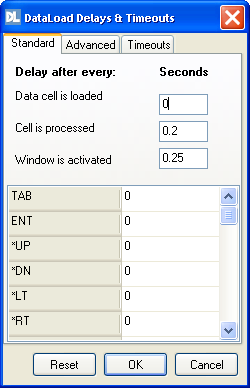
DataLoad delays are configured in the delays window. This is opened from the 'Tools' menu or by its toolbar icon and consists of two tabs, 'Standard' and 'Advanced', which group different delays. All generic delays are set in this window and they can be specified in whole or decimal seconds, e.g. 1 or 0.5.
Delays are cumulative and after a cell is processed DataLoad will pause for the combined length of time specified by all relevant delays. For example, both the "Data cell" and "Cell" delays (see below) will be used after a data cell is processed and both the "Cell" and "TAB" delays will be used after the TAB command is used.
This tab contains the most commonly used delays and these are divided into two groups. First are the general delays, which will affect every load. The 'Data cell' delay occurs after a cell containing data or keystrokes is processed while the 'Cell' delay causes a pause after any cell is processed (command, data or keystroke). The third delay in this group occurs after DataLoad activates the target window but before any cells are processed. This provides time for the target application to become active before data is sent.
The second group of delays are the command delays and a delay exists for every DataLoad command. These delays occur immediately after the relevant command has been executed. For example, a TAB delay of 0.5 will cause DataLoad to pause for 0.5 seconds after sending a TAB key. These commands are useful when DataLoad must wait while the target application processes a command, for example when saving data.
This tab enables fine tuning of DataLoad's performance but should be used with care. These delays are set in milliseconds rather than seconds and control delays after certain important events. The first 2 delays occur after a key is pressed and control for how long it is held down. The 'Key' press delay specifies the delay after a non-system key , while the 'System' key press is the delay for a system key (Alt, Shift or Control, etc). The 'Hourglass' delay defines how long DataLoad should pause after the mouse cursor returns to normal after being an hourglass. If this delay is set to 0 then DataLoad will continue the load as soon as the mouse cursor is no longer an hourglass but in some applications a further delay can be useful. This is only used if "Wait while hourglass" is enabled in the Options window. If this option is used DataLoad will pause sending data to the target window until the application has finished processing the previous data and commands, as indicated by the cursor changing back to its normal state from an hourglass.

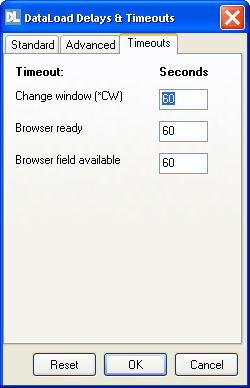
The Timeouts section controls how long DataLoad waits for something to be found or available in the target window. If something takes longer than permitted by its timeout value DataLoad will give-up and stop the load. These timeouts are used with Load Control and Browser Control.
Change Window: Maximum time to find a window when using *CW().
Browser ready: Maximum time to wait for the browser to be ready for data entry in Browser Control mode.
Browser field available: Maximum time to wait to find a browser field in Browser Control mode.